Cost Alerts
Cost alerts evaluate aggregated AI Agent Watch data and notify you when it meets a condition. A cost alert does not stop an agent or enforce a spending limit.
Open AI Agent Watch → Event Alerting → Cost Alerts to manage rules.
AI Agent Watch includes default cost alerts to help you spot unusual spending, drops in cache hit rates that can increase costs, and usage with missing pricing. You can customize these rules or create your own.
Choose an alert type
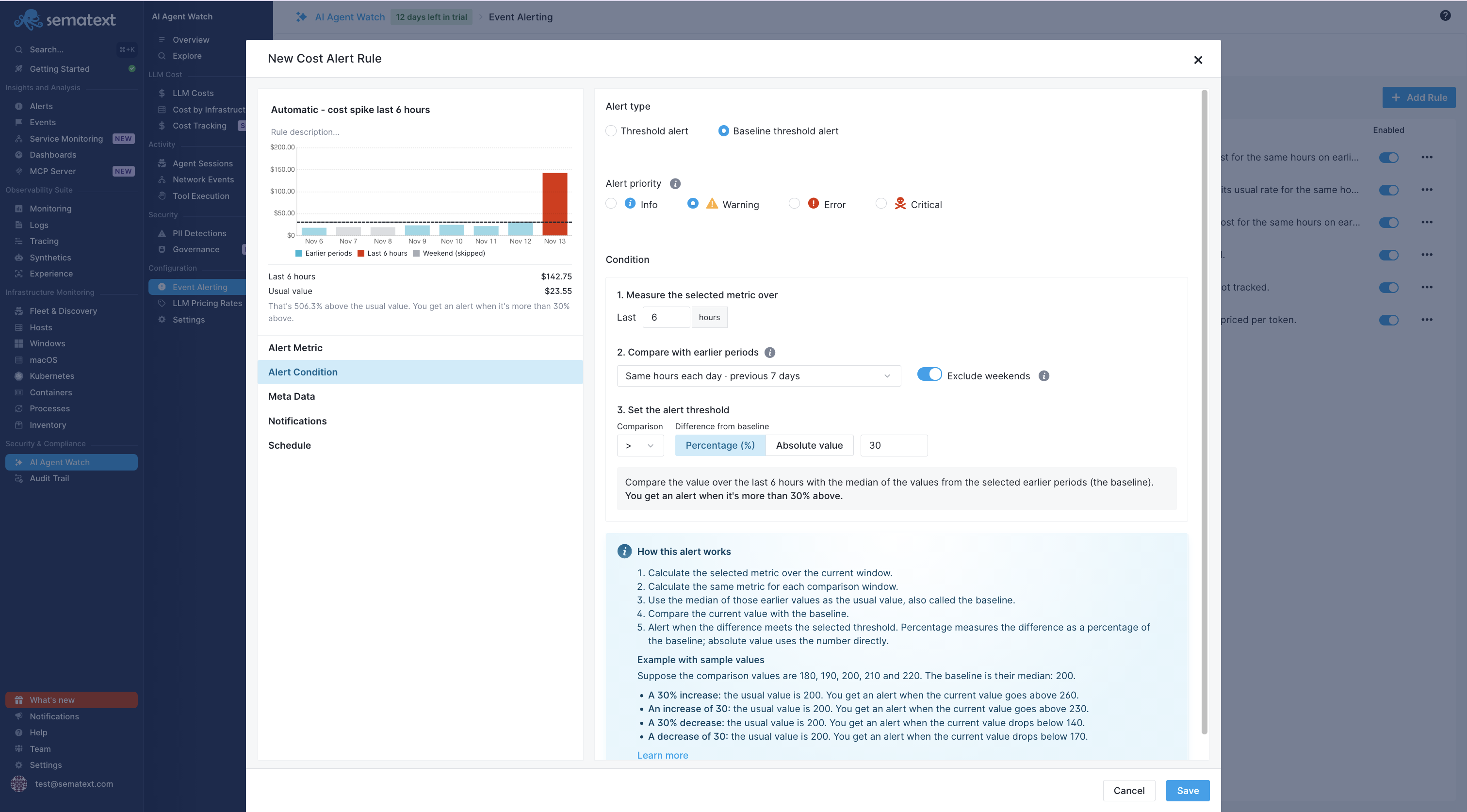
Select the alert type (Threshold or Baseline), then choose the metric, aggregation, and analyzing window.
- Threshold: Compare a metric aggregated over an analyzing window with a fixed limit. For example, alert when captured LLM cost exceeds $50 in an hour.
- Baseline: Compare the current window with the median of comparable earlier windows. For example, alert when a workstation agent's cost is more than 30% above its normal level.
Use filters to select the usage you care about and grouping to evaluate origins independently. For example, group by host to detect a workstation spike that would be diluted in an organization-wide total. Choose the metric, aggregation, and grouping supported by the rule form for your question.
Baseline comparison windows
| Mode | Earlier windows used for comparison | When to use it |
|---|---|---|
| SLIDING | Back-to-back windows over the previous 24 hours. | Use this to catch changes from recent activity, especially for agents that work throughout the day without a regular schedule. |
| ALIGNED | The same clock-time window on each of the previous seven days. | Use this when activity follows a daily routine. For example, compare this afternoon's coding costs with previous afternoons rather than quieter overnight hours. |
| WEEKLY | The same clock-time window on the same weekday over the previous four weeks. | Use this when activity varies by weekday. For example, compare a Monday morning automation run with previous Mondays rather than days when that task does not run. |
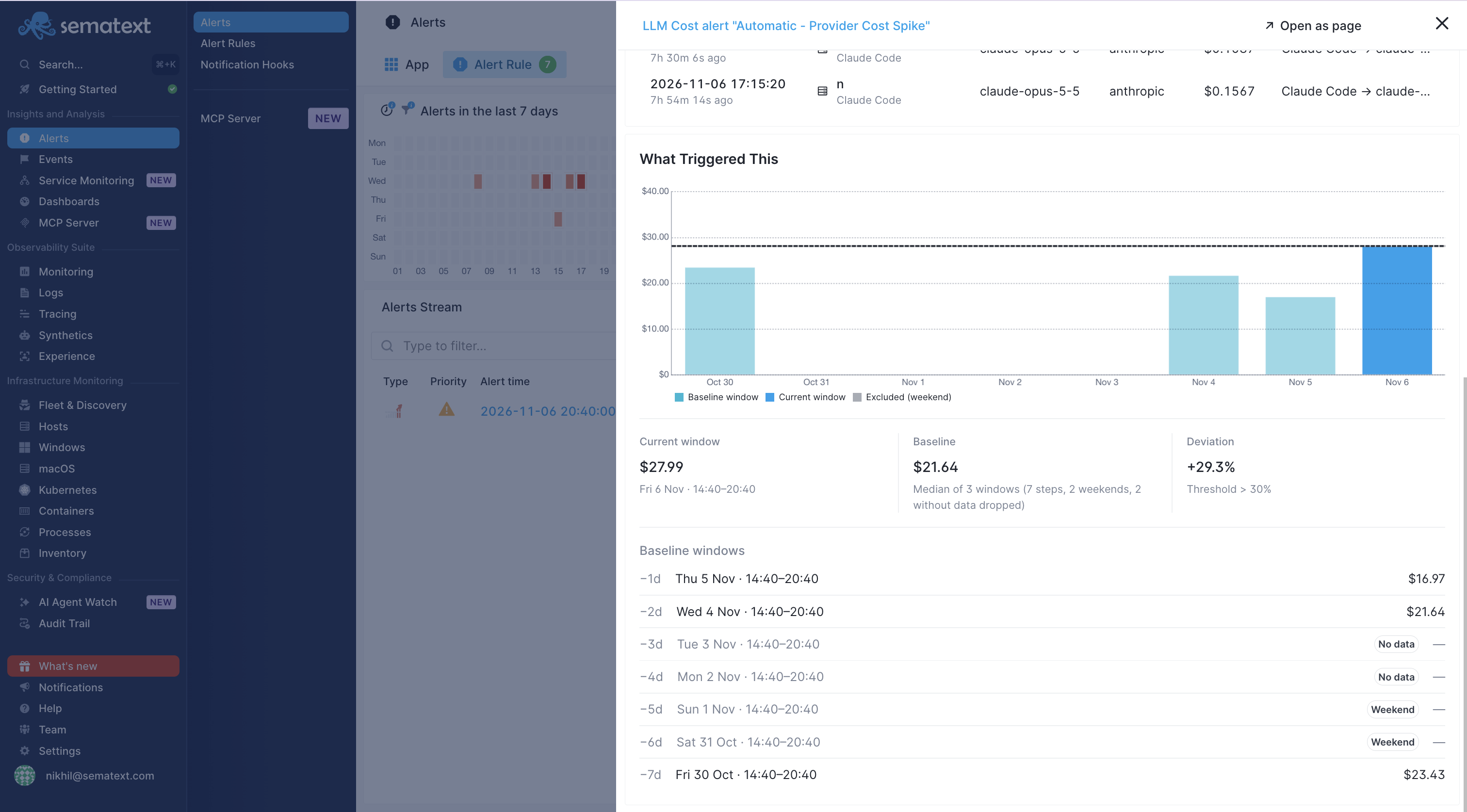
Baseline rules use the median of the earlier windows selected by your comparison mode. Windows without data are excluded. For ALIGNED comparisons, you can also enable Skip weekends to exclude Saturday and Sunday windows from the baseline.
If your team mainly uses coding agents during weekday working hours, start with ALIGNED and enable Skip weekends. If particular days regularly have different workloads, WEEKLY provides a more comparable baseline.
Choose Percentage to get an alert when spending is, for example, 30% above its usual level. Choose Absolute value when you care about a specific increase, such as $20 above the usual cost.
Investigate a cost alert
Open a cost alert from the LLM Costs report's alert feed. Review the triggered value, condition, and current value. For a baseline alert, inspect the historical windows, their median, and any excluded windows to understand the comparison.
Then inspect the contributing events from the alert's analyzing window, narrowed to its filters and the group that triggered it. Use the events' agent, host, model, and token usage to distinguish a model change from increased activity.